Free AI Photo Editor Online
Upload a photo, describe the change in one sentence, and get your edit back free with no watermark. This free AI photo editor online lets you edit photos by describing changes instead of masking, cloning or retouching by hand.
Max 10MB per file
Examples
Configure parameters and click Generate
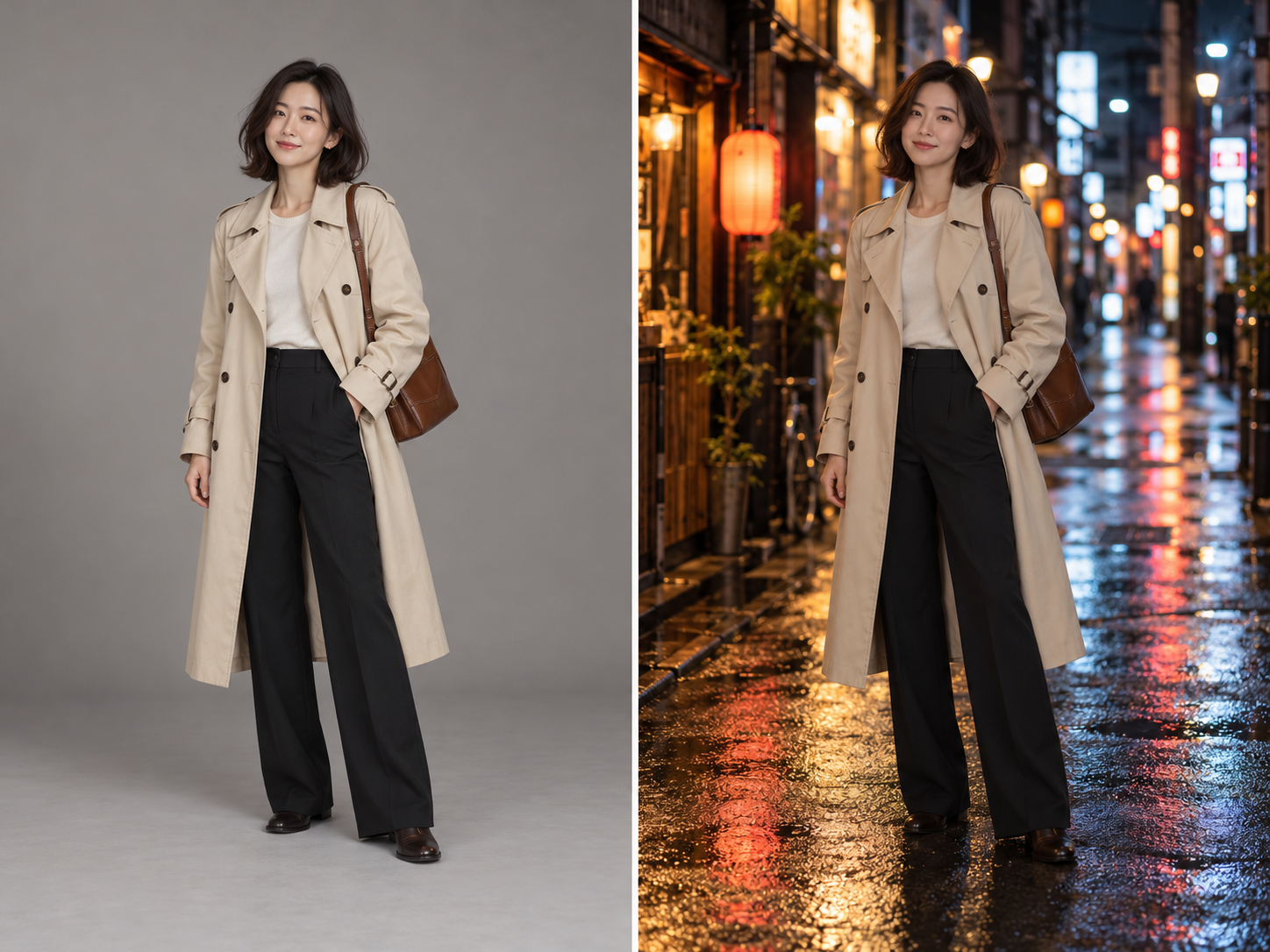
Background swaps
Keep the person, pose and outfit exactly the same. Replace the background with a quiet Tokyo side street at night, neon signs and wet pavement.
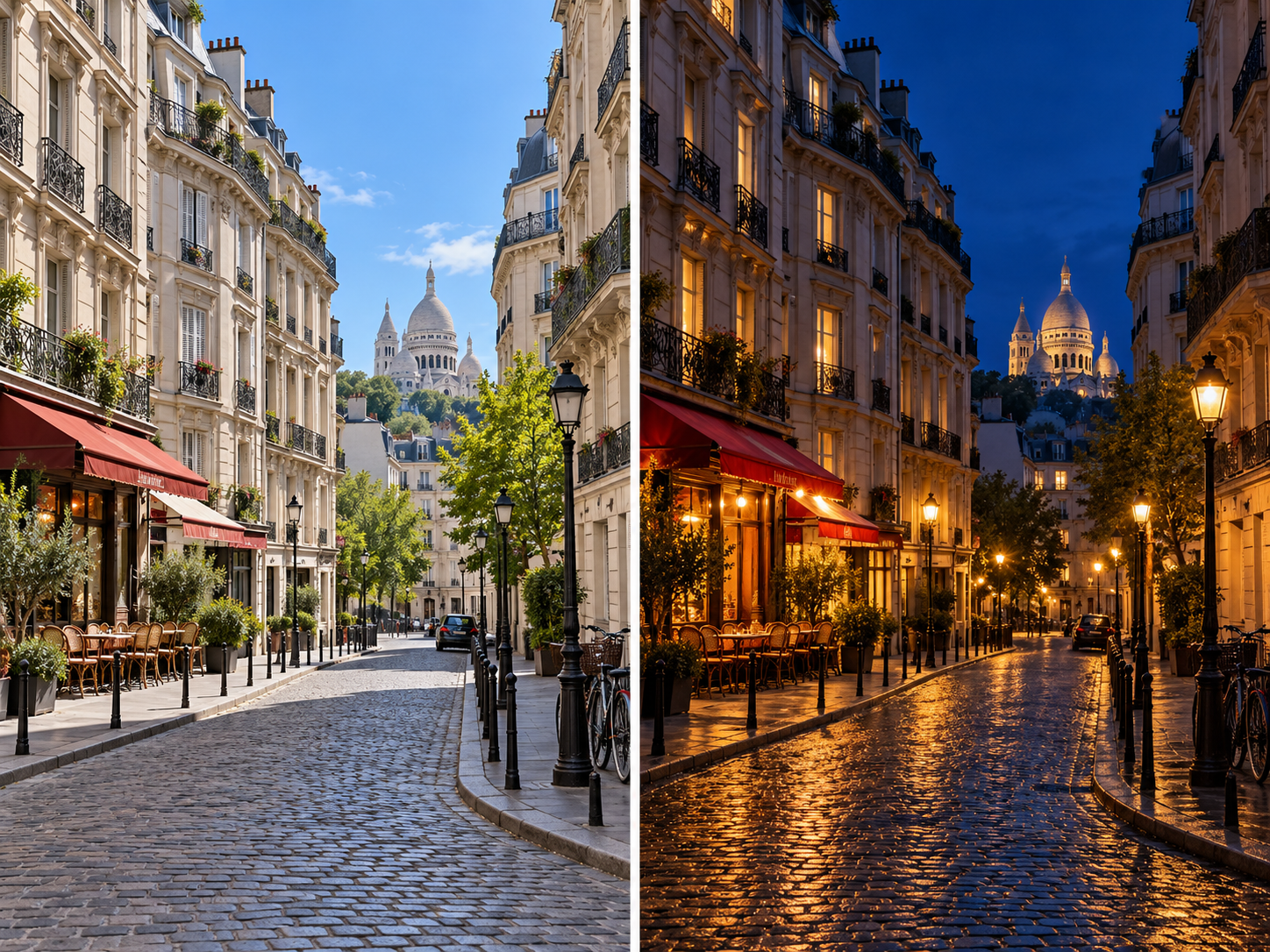
Day to night
Turn this daytime photo into a night scene: warm streetlights, deep blue sky, lit windows. Keep the buildings and the framing unchanged.
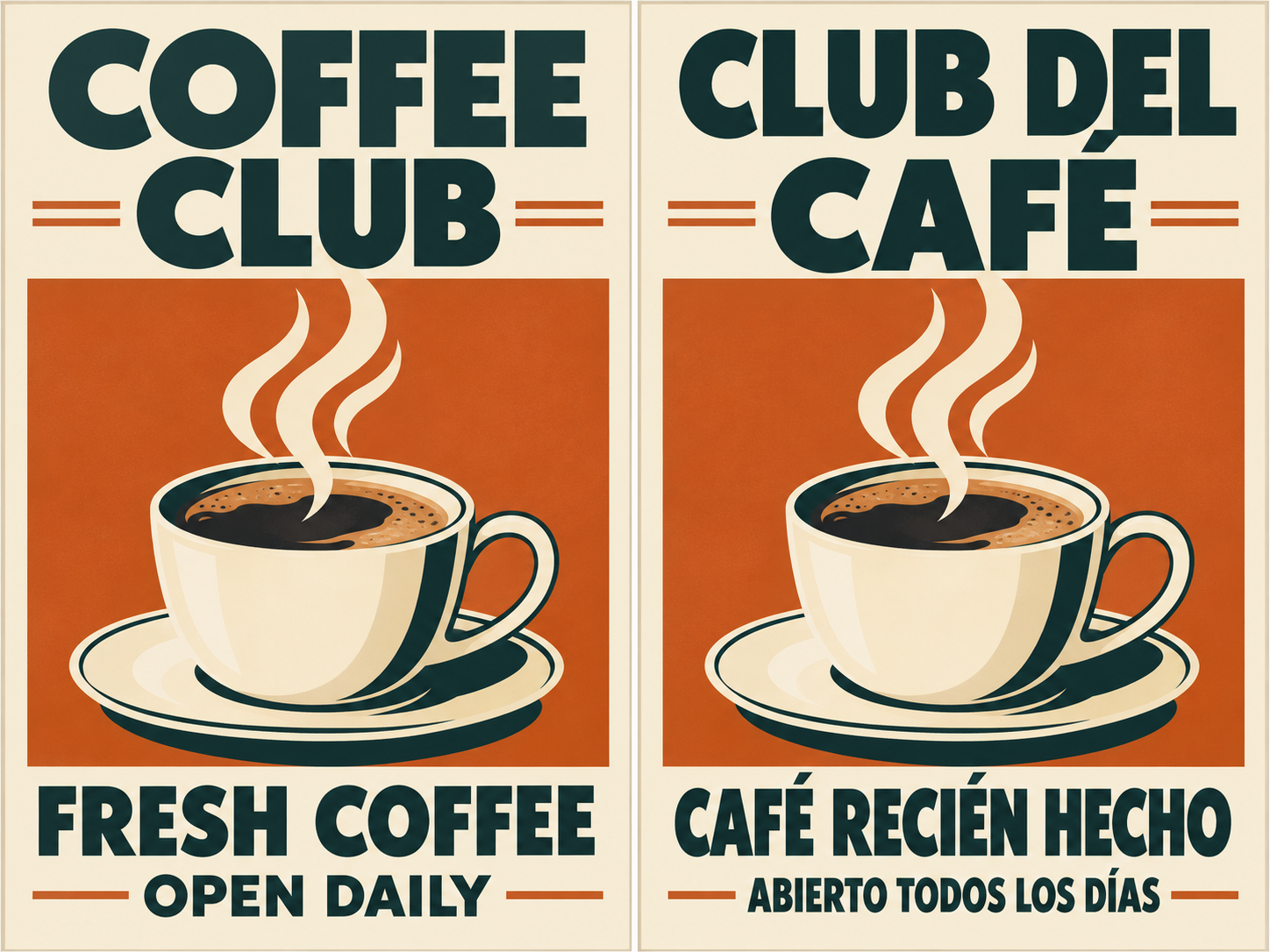
Translate the text in an image
Translate all the English text on this poster into Spanish. Keep the same fonts, colors, layout and image.
Imagine Image is an independent site, not affiliated with or endorsed by Google or OpenAI. Nano Banana is a community nickname for Google's Gemini image model, which we access through a third-party API provider.
What You Can Edit with AI
Think of it as a free online AI image editor, or an AI picture editor that takes instructions instead of brush strokes. These are the edits people run most often, each with a prompt you can copy into the panel above.
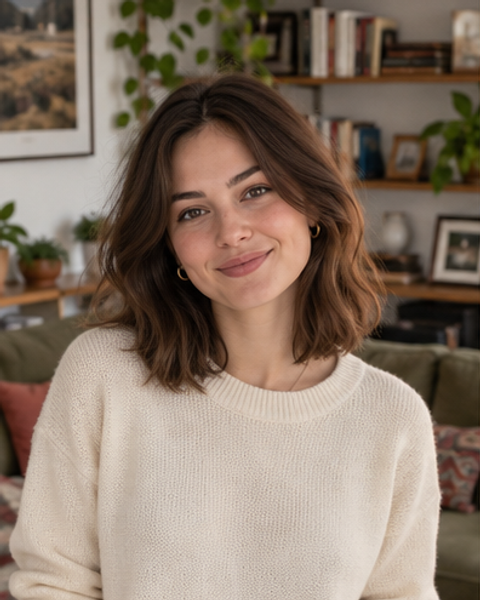
Before 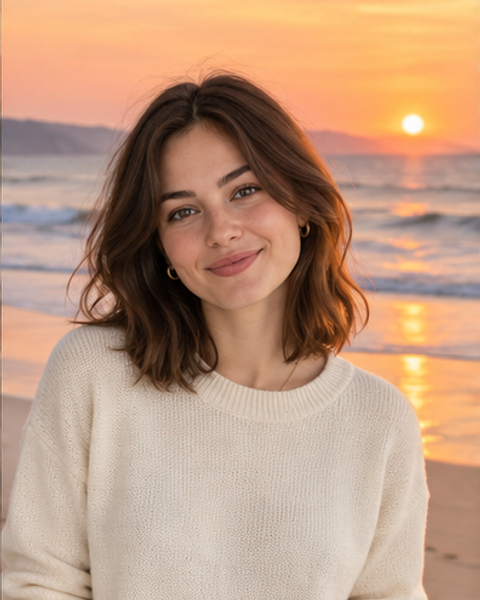
After Change the Background
Swap a cluttered room, a grey sky or a busy street for a clean backdrop while the subject stays exactly where it was. It is the quickest way to change a photo background with AI, free, without cutting anything out by hand.
Example promptReplace the background with a sunset beach, keep the person, pose and clothing unchanged.
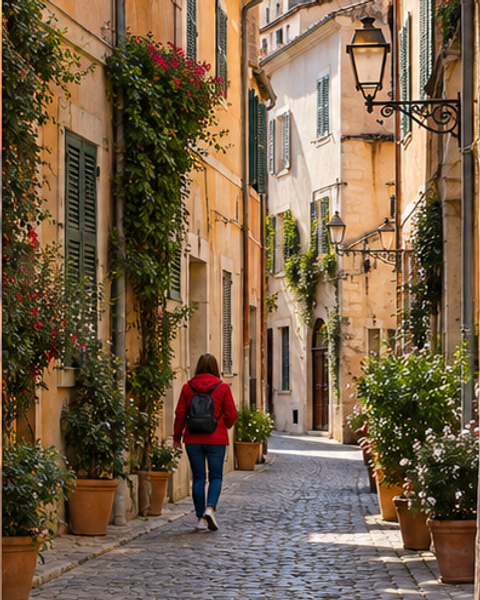
Before 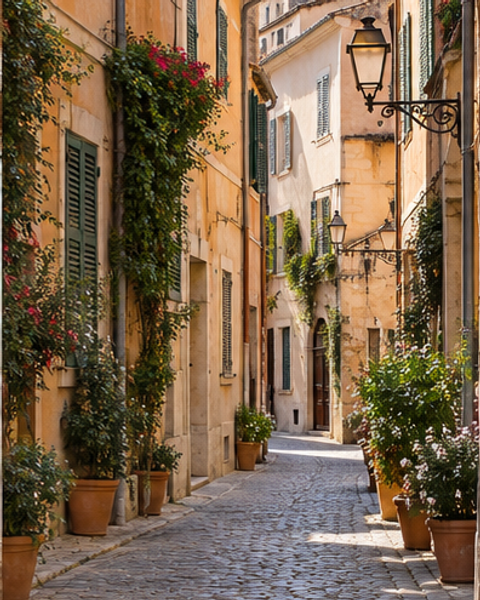
After Remove Objects
Clear photobombers, power lines, bins or stray cables and let the model fill the gap with matching scenery. Remove an object from a photo with AI, free, by naming what should disappear.
Example promptRemove the person walking in the background on the left and fill the area with the matching street.
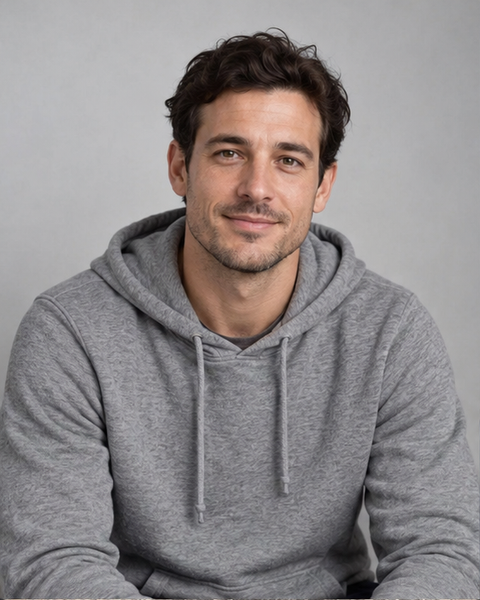
Before 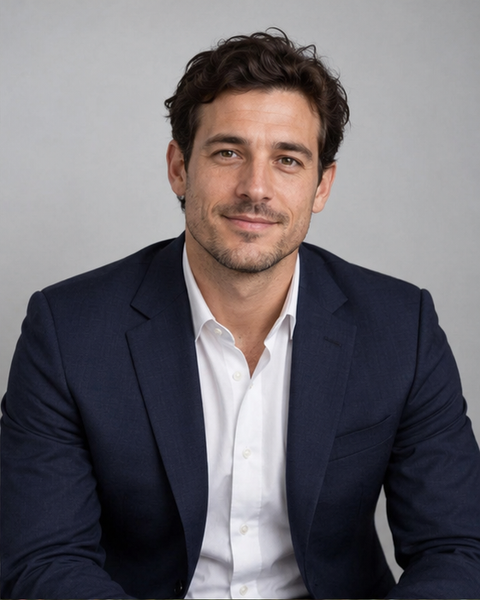
After Change Clothes
Try a different jacket, colour or fabric on the same person without a reshoot. To change clothes in a photo with AI, describe the new outfit and ask for the face and pose to stay the same.
Example promptChange the grey hoodie to a tailored navy blazer over a white shirt, keep the face and pose identical.
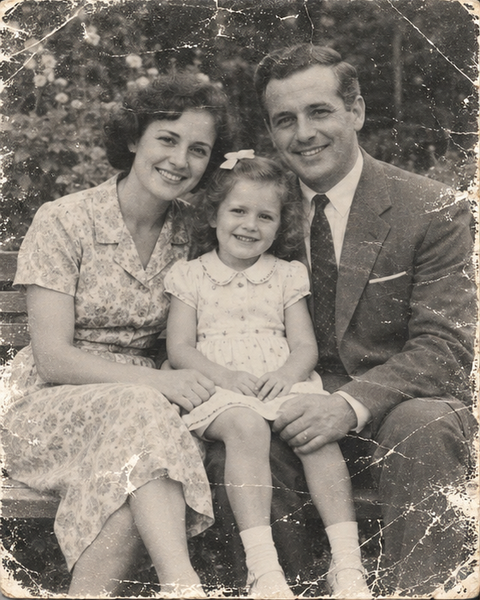
Before 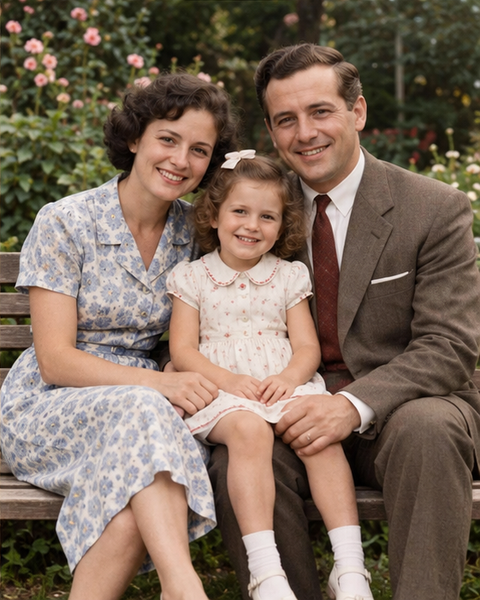
After Restore Old Photos
Repair scratches, fading and torn corners on scanned prints, or add natural colour to black-and-white family photos. You can restore old photos with AI free on your starter credits; check faces closely, because the model rebuilds missing detail rather than recovering it.
Example promptRestore this old photo: remove scratches and dust, fix the faded contrast and colourise it naturally.
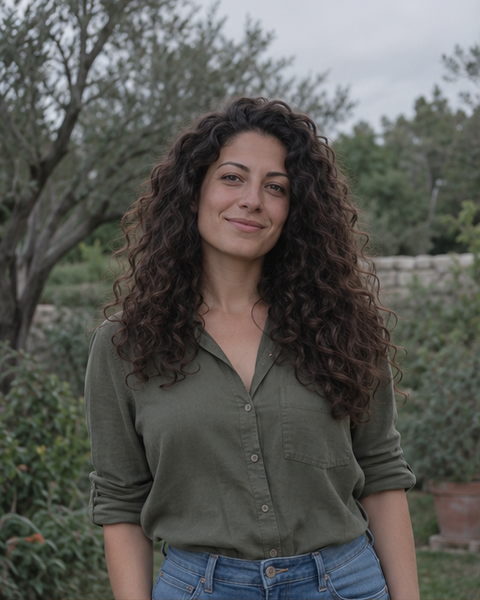
Before 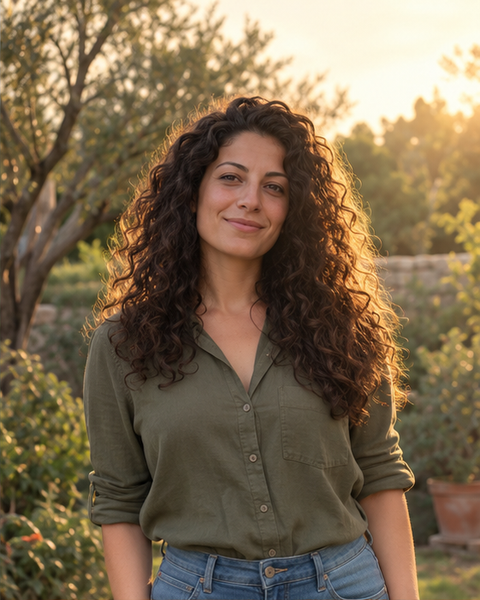
After Change the Lighting
Turn flat midday light into golden hour, add soft window light to a portrait or relight a product shot for a moodier look. To change the lighting in a photo with AI, describe the light source and its direction.
Example promptRelight the scene as warm golden hour sunlight coming from the right, with soft long shadows.
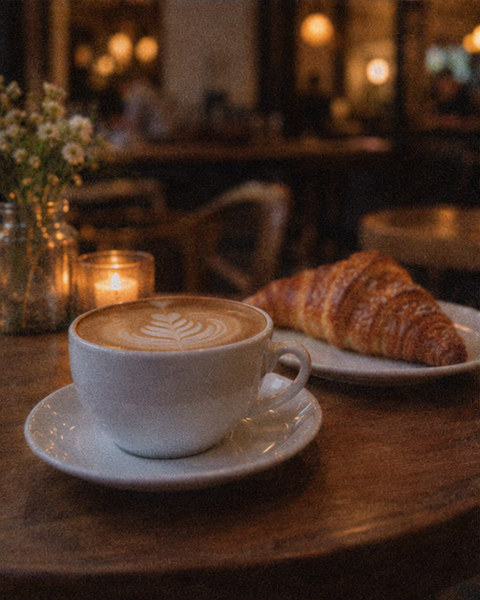
Before 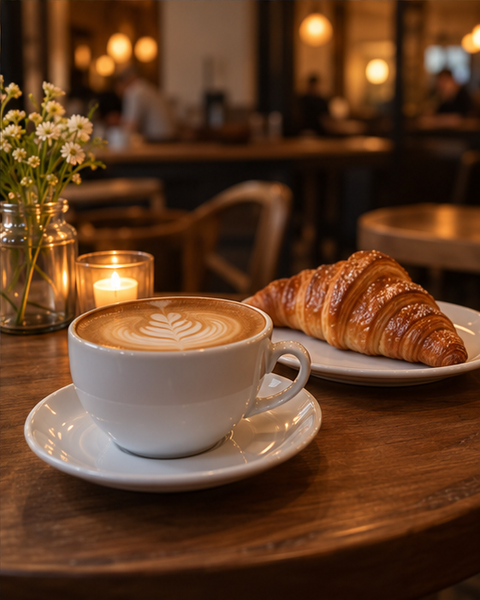
After Enhance Image Quality
Want a sharper, higher-resolution photo without changing what is in it? Use our dedicated AI photo enhancer.
How to Edit Photos with AI in 3 Steps
This is AI photo editing with words: no layers, masks or selection tools, just an AI photo editor, free online, that runs in your browser. You need a free account to upload and generate.
- 01
Create a free account
Sign up for a free Imagine Image account. If you press Generate while signed out, the sign-in window opens for you. New accounts receive a one-time pack of free credits.
- 02
Upload a photo and describe the edit
Add the picture you want to change, then write what should be different in one or two sentences. Mention what must stay the same, such as the face or pose.
- 03
Generate and save
Press Generate. The credit cost is shown on the button before you run it. Save the result as PNG or JPEG, or tweak one phrase and run it again.
Powered by Nano Banana
The editor opens on Nano Banana Edit, so this page works as a Nano Banana photo editor out of the box, and your starter credits make it a Nano Banana AI image editor you can try free. Nano Banana is the nickname people gave to Google's Gemini image model. It is an image model built by Google, not a Google product we run on its behalf. We reach it through a third-party API provider.
What makes it a strong AI image editor is how it handles instructions. You describe a change in plain language and it rewrites only that part of the picture, keeping faces, products and composition recognisable. You can also add several reference images and ask it to combine them. For more on the model family, see the Nano Banana guide and the Nano Banana 2.1 page.
Nano Banana is not the only option. The model menu in the panel also lists other image-to-image models, and each one shows its credit cost before you run it. Trying the same prompt on two models is often the fastest way to find the look you want.
Edit image with text
A single sentence is enough to edit an image with text AI instructions, whether that means a new background or a different jacket colour.
Keeps what you didn't mention
Anything the prompt leaves out tends to stay as it was, which is what makes targeted edits possible.
Multi-image references
Upload up to 10 reference images to merge a product into a scene or carry a style across photos.
Free AI Photo Editor vs Gemini, ChatGPT & Photopea
If you are looking for a Gemini photo editor alternative or a ChatGPT photo editor alternative, here is how the options compare on what matters for quick edits. Where a detail depends on plan, region or recent changes, we have written "Varies" rather than guess.
| Feature | Imagine Image | Gemini | ChatGPT | Photopea |
|---|---|---|---|---|
| Free allowance | One-time free credits on sign-up | Varies | Varies | Free, ad-supported |
| Watermark | None added by us | Varies | Varies | Varies |
| Edit with a text prompt | Yes | Yes | Yes | Varies |
| Works in a web browser | Yes | Yes | Yes | Yes |
Comparison based on publicly available information as of October 2026. Free limits and watermark policies on other services change often, so check each provider before relying on them. Gemini, ChatGPT and Photopea are trademarks of their respective owners.
FAQ
Is this AI photo editor free?
Yes, to start. Creating an account is free, and new accounts receive a one-time pack of free credits, so you can edit photos with AI free before deciding whether to buy more. Each edit uses credits, and the exact cost is shown on the Generate button before you run it. When your free credits run out, you can buy more on the pricing page.
Do I need an account?
Yes. You need a free Imagine Image account to upload photos and generate edits. If you press Generate while signed out, the sign-in window opens. Creating the account costs nothing.
Is there a watermark?
No. This is a free AI photo editor with no watermark: we add nothing to your edits, whether you use free or paid credits. The underlying model may embed an invisible provenance signal, such as Google's SynthID, which we leave intact.
How is it different from Gemini?
Gemini is Google's assistant, and image editing is one of many things it does. This page is a dedicated photo editing workspace. It runs Nano Banana, the nickname for Google's Gemini image model, through a third-party API, alongside other editing models you can switch to. Imagine Image is independent and is not affiliated with Google.
Can I use the edited images commercially?
Yes, within our terms. We do not claim ownership of your outputs, and you may use them for lawful personal or commercial purposes as long as you have the rights to the photos you upload and your use does not infringe anyone else's rights.
What file formats are supported?
You can upload common image files such as JPG, PNG and WebP, up to 10 MB each, and Nano Banana Edit accepts up to 10 reference images per edit. Results can be saved as PNG or JPEG.
Can I edit a photo just by describing the change?
Yes. That is the core of an AI photo editor with text prompt control. Type something like "replace the sky with a sunset" or "make the jacket red leather" and the model edits that part of the picture. Naming what should stay unchanged, such as the face or pose, makes results more reliable.
Can it restore old or damaged photos?
It can remove scratches, fix fading and colourise black-and-white prints, which makes it a practical way to restore old photos with AI. Because the model reconstructs missing detail rather than recovering it, compare faces with the original and keep a copy of the scan.