Free AI Photo Enhancer Online
Upload a blurry or low-resolution photo and get a sharper, clearer version back. This free AI photo enhancer works in your browser: create a free account and your starter credits cover your first enhancements.

Example comparisons are illustrations. Loading a sample is free; Enhance uses the credits shown on the button.
Imagine Image is an independent site, not affiliated with or endorsed by Google or Remini. Enhancement runs on Google's Nano Banana image models, which we access through a third-party API provider.
What Our AI Photo Enhancer Can Do
Unlike a basic free image enhancer that applies one filter to everything, this one lets you pick the closest match in the tool above. Each option sends the model a different set of instructions, so a portrait gets careful treatment of eyes and skin while a product shot gets crisp edges and readable labels. Drag any slider below to compare.
AI-generated illustrations of photo enhancement and restoration. Results depend on the source photo and selected settings.
After Before Make blurry photos clear
Soft focus, slight camera shake, low-light grain and heavy JPEG compression are the usual reasons a photo looks bad. This is where an AI photo quality enhancer earns its keep: enhance a low-quality photo and get clean edges and texture back without changing what is in the frame.

After 
Before Increase image resolution
Choose 2K or 4K output to increase image resolution with AI. The model redraws your picture at a larger size with fresh detail instead of stretched pixels. Use it when an image from a chat app, an old phone or a website thumbnail needs to look good on a bigger screen or in print.
After 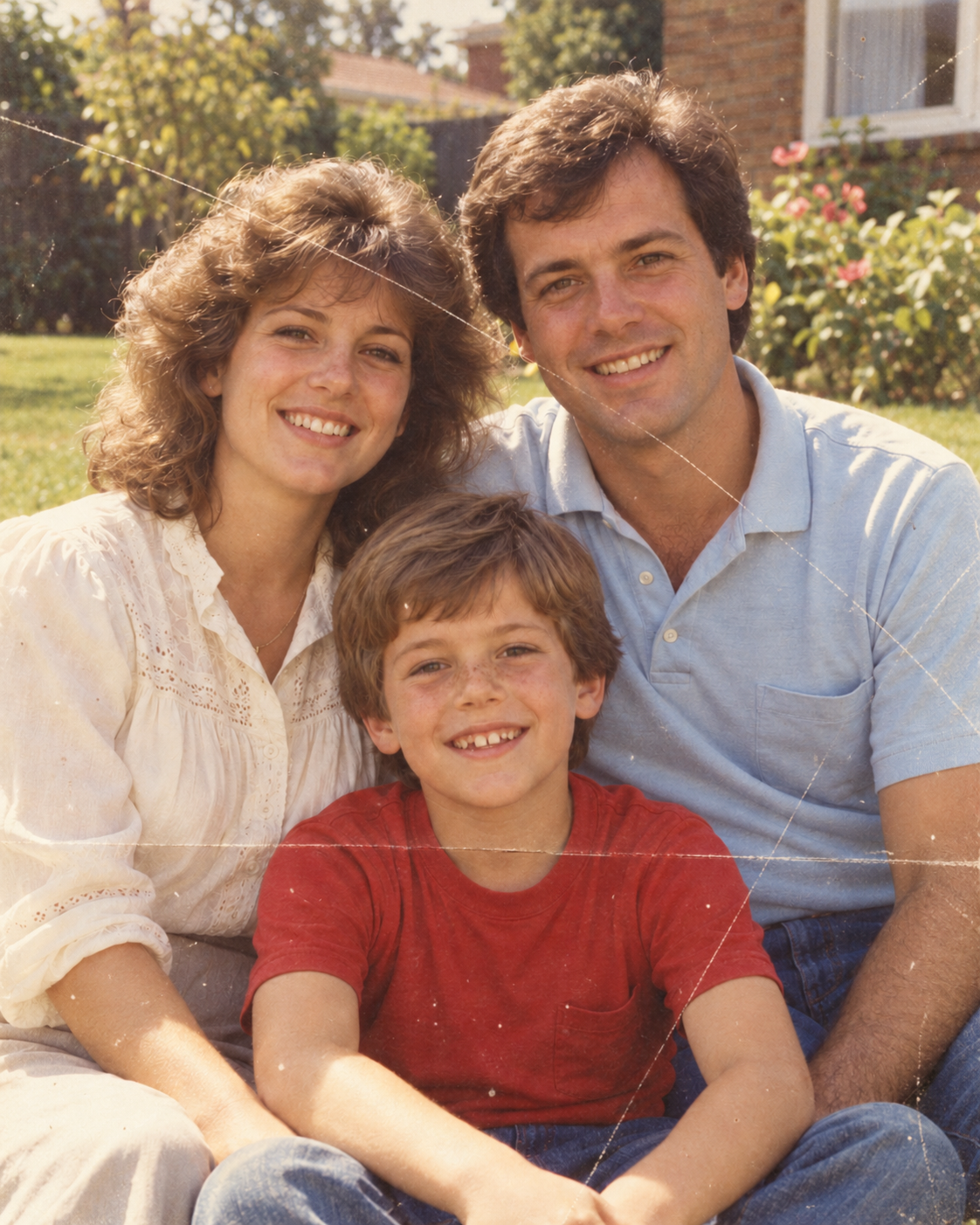
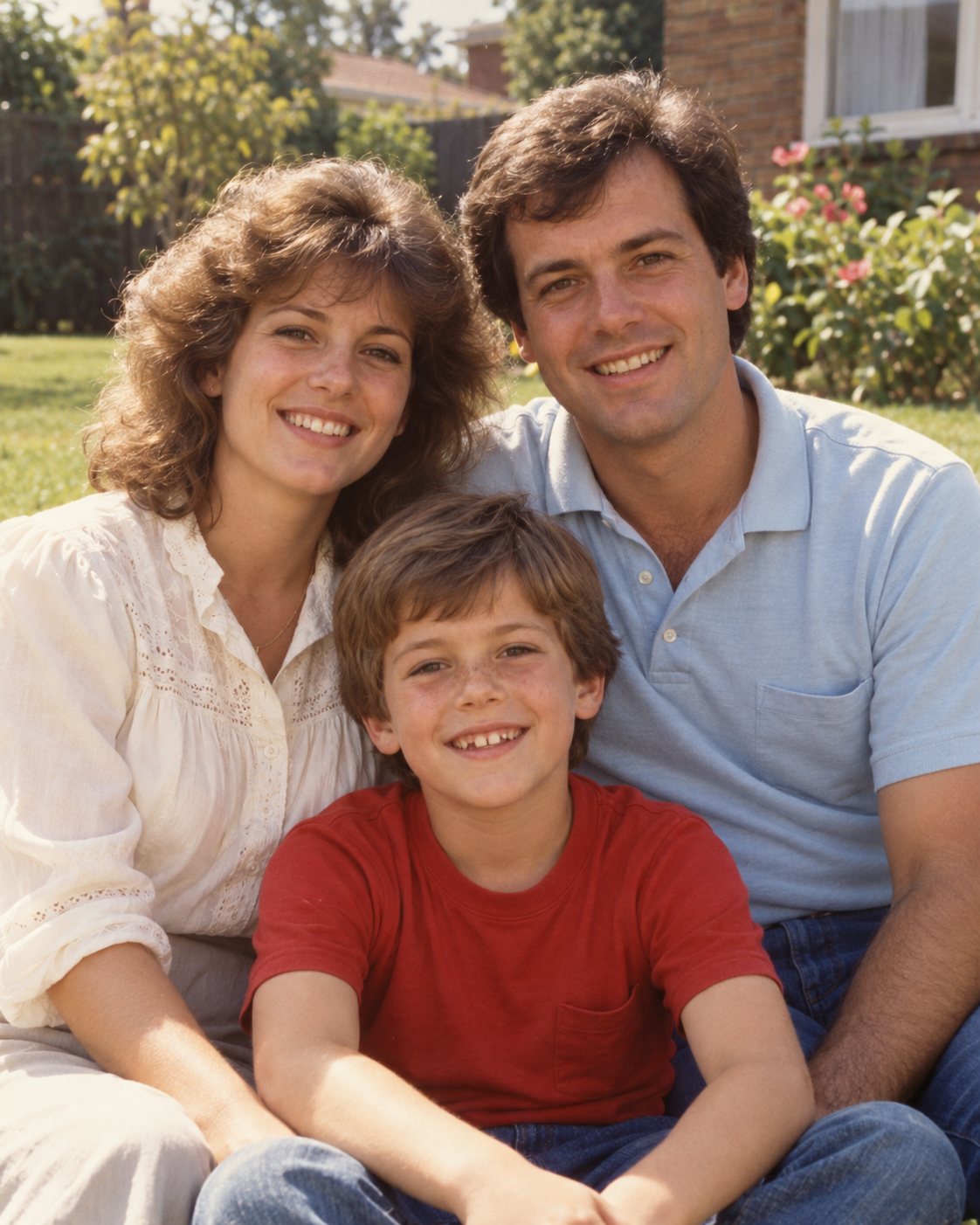
Before Enhance old photos
Scanned prints often come with dust, scratches, creases and faded contrast. The Old photo option cleans those up and sharpens the image while keeping its original colours and era, so a family snapshot from the 80s still looks like it came from the 80s.

After 
Before Sharpen portraits
The Portrait option works as an AI face enhancer. It sharpens eyes, hair and skin texture and tells the model not to retouch or reshape the face. Faces are where a redraw is most likely to drift, so compare the result with the original before you share it.
After 
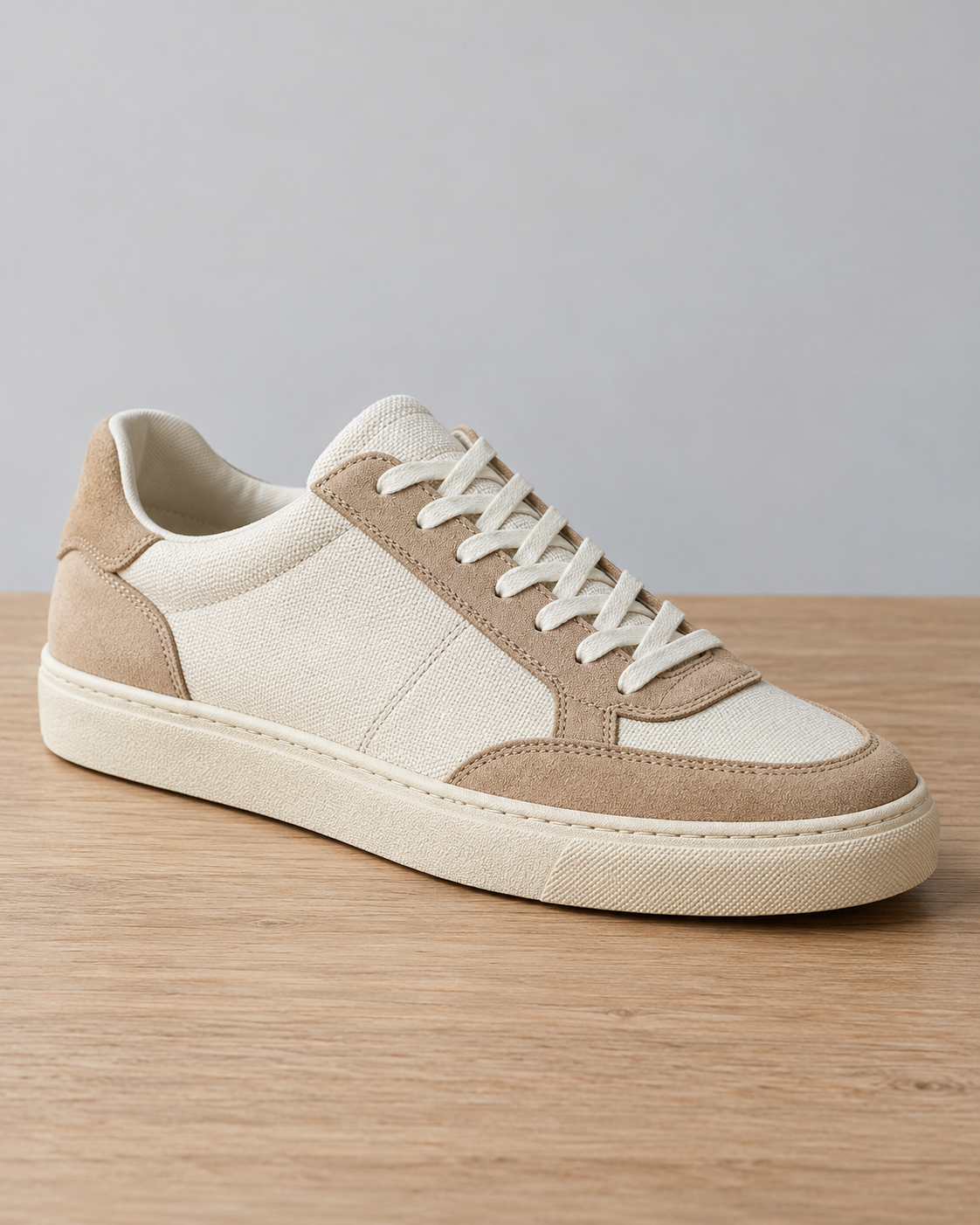
Before Clean up product photos
Marketplace listings punish soft photos. Enhance product photos with AI to get crisp edges, readable labels and clean fabric or metal texture, while colours stay as close to the real item as possible.
How to Enhance Photo Quality with AI in 3 Steps
Using the free AI photo enhancer takes no sliders and no editing skills. You do need a free account, because each enhancement runs on a paid image model and uses credits.
- 01
Create a free account
Sign up for free. If you press Enhance while signed out, the sign-in window opens for you. New accounts get a one-time pack of starter credits.
- 02
Upload and choose your settings
Add a JPG, PNG or WebP up to 10 MB. Pick what you are enhancing (any photo, portrait, old photo or product) and an output resolution. The credit cost appears on the button before you run it.
- 03
Enhance, compare and download
Press Enhance, then drag the slider to compare the result with your original. Download it, or try a different option. Every result is also saved to My Creations.
Why Use an AI Image Enhancer?
When you enlarge a photo in a normal editor, the software uses interpolation, usually bicubic. It creates each new pixel by averaging the pixels around it. That makes the image bigger but not better. Edges go soft, noise gets bigger along with everything else, and blur stays blurry. It cannot add detail the camera never captured.
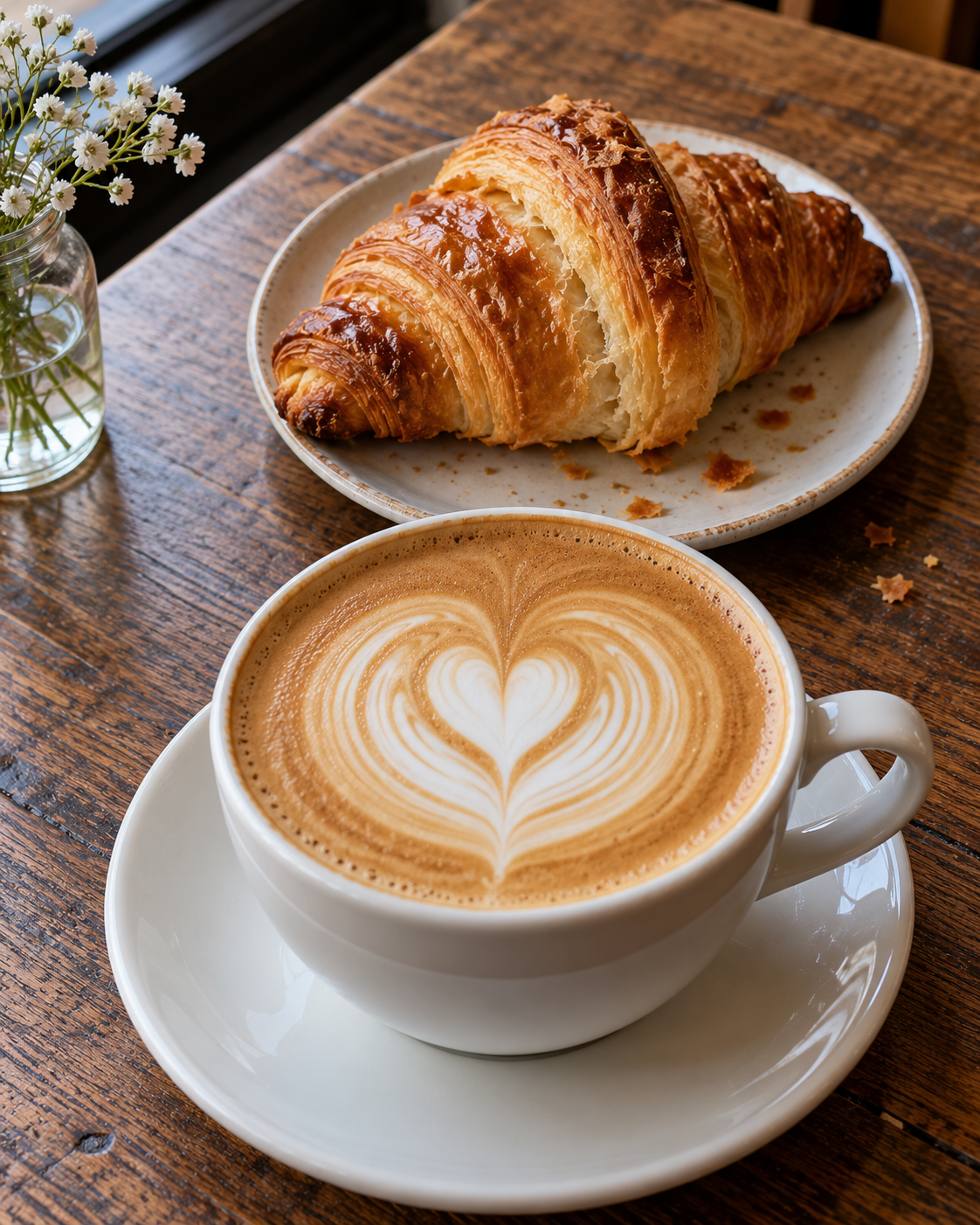
An image enhancer AI model works differently. The model has learned what eyelashes, brick, fabric and printed text usually look like, so it redraws the picture with clean edges and plausible texture. That is why a soft café shot comes back with crisp latte art instead of a larger smudge.
The trade-off is honesty about what you get. AI adds detail that looks right; it does not recover the real detail that was lost. For most uses, such as social posts, listings, prints and family albums, that is exactly what you want. For anything where accuracy matters, like documents, evidence or ID photos, use the original.
Printing
A 4×6 inch print at 300 DPI needs about 1800 × 1200 pixels, and an 8×10 needs about 3000 × 2400. If your file is smaller, enhance the photo for printing at 2K or 4K first.
Listings and profiles
Shops and social apps compress uploads again. Starting from a sharper file means less mush after they do.
Old scans
Cleaning up dust and fading by hand takes hours. The Old photo option handles most of it in one pass.
When to skip it
If a face or a line of text is completely unreadable, the model will guess. Keep expectations in line with what the original shows.
Free AI Photo Enhancer vs Remini vs Gemini
If you are looking for a free Remini alternative or a Gemini photo enhancer alternative that runs in the browser, here is how the options compare. Where a detail depends on plan, region or recent changes, we wrote "Varies" instead of guessing.
| Feature | Imagine Image | Remini | Gemini |
|---|---|---|---|
| Free allowance | One-time starter credits on sign-up | Varies | Varies |
| Works in a web browser | Yes | Varies | Yes |
| Upscale options | Standard, 2K or 4K output (no fixed 2x/4x factor) | Varies | Varies |
| Watermark | None added by us | Varies | Varies |
Comparison based on publicly available information as of October 2026. Free limits, features and watermark policies on other services change often, so check each provider before relying on them. Remini and Gemini are trademarks of their respective owners.
FAQ
Is this AI photo enhancer free?
Free to start. Creating an account costs nothing, and most new accounts receive 10 free credits once (a smaller amount in a few regions). A Standard enhancement uses 6 credits, so your first one is free. If you want to upscale an image with AI for free, Standard is the option your starter credits cover. 2K and 4K cost more than the starter pack, and you can buy more credits on the pricing page when you need them.
Do I need an account?
Yes. You need a free Imagine Image account to upload and enhance photos. You can pick a photo while signed out, but pressing Enhance opens the sign-in window first.
Will it change my face or the content of my photo?
It can, slightly. The model redraws the image rather than just sharpening pixels, and it is told to keep faces, expressions, text and objects unchanged. Most results stay faithful, but small details such as eye shape, teeth or fine text can shift, especially when the original is very blurry. Always compare with the slider and keep your original.
What is the maximum resolution?
The largest output setting is 4K. Standard returns an image of around 1K, and 2K sits in between. The exact pixel size depends on your photo's shape. Uploads can be JPG, PNG or WebP up to 10 MB.
Is there a watermark?
No. If you want an AI image enhancer free of watermarks, this is one: we do not add a watermark to enhanced photos, whether you use free or paid credits. Google's image models may embed an invisible SynthID provenance signal, which we leave intact.
Can I enhance old photos?
Yes. Scan or photograph the print, upload it and choose Old photo. It removes dust, scratches and fading and sharpens the image while keeping the original colours. For badly damaged faces the model has to guess, so check the result against the original.
Are my photos stored or shared?
Your upload and the result are stored in our media storage so they appear in My Creations and stay downloadable. They are sent to the AI provider that runs the model, and they are not shown publicly unless you use a sharing feature. You can delete creations where that option is available, or ask us to delete your account. Our Privacy Policy has the details.
Can I use it as a free Remini alternative?
For enhancing photos in a browser, yes. Your starter credits cover a Standard enhancement with no watermark added, and paid credits unlock 2K and 4K. Remini is a separate product with its own plans and features, and we are not affiliated with it.